
Business Rules
- Ryzer Alerts is our notification system that connects athletes with relevant events and maximizes the exposure of your events.
-
Parents/Guardians create a customizable profile for each child
- Ryzer's patented notification system will tailor notifications to their preferences based on how they set up their profile.
-
Ryzer alerts will send out emails/text(s) to athlete/parent when an event match is found. Allowing them to register for your event or save the email notice to register later.
- Sends automated event reminders for events of interest – days prior to the registration cutoff and/or when an event is close to selling out.
First Alert Info:
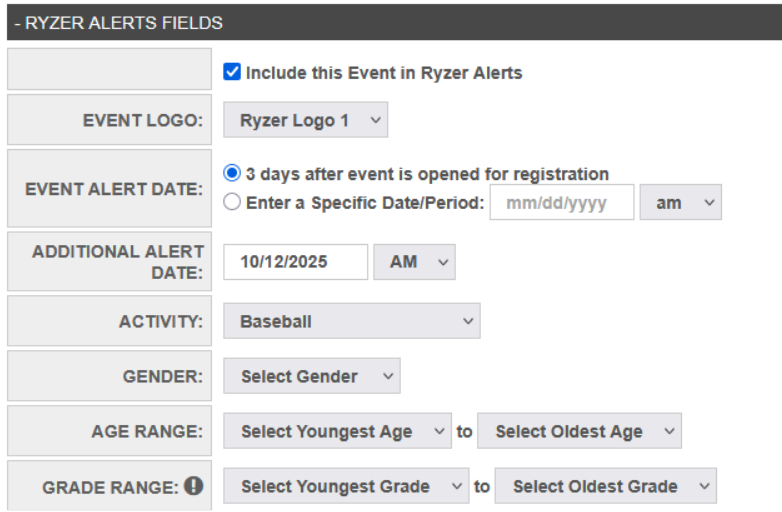
- Alert is sent 3 days after the event is open for registration.
-
If the event is scheduled to open registration an alert will still be sent 3 days after the event scheduling the event to go live.
- The alert lets them know registration will open on x date.
Second Alert Info:
- The event has to be set up 3 months or more before the event start date.
- The additional alert will be set to go out 3 weeks before the event start date by default, but that can be changed if the coach prefers a different date
- It hinges off the start date and when the first alert is set up.
- You'll know if the event qualifies for the additional alert to be sent if this field shows in the alerts section of add/edit as well
- If you want the second alert to NOT go out, remove the date from the field
FAQ
However, in order to find an event through the above website you have to search by selecting from the following criteria below:
-
Basic Search Options are as follows:
-
Select a Sport
- Required Field
-
Select a State
- Required Field
-
Select a Sport
-
Advanced Search Options are as follows:
- Event Name
-
Select a Sport
- Required Field
- City
-
Select a State
- Required Field
- Select a Price
- Customer Name
- Event Name
- Location
- Event Dates
- Price Range
-
Register Button
-
This links to the event details registration page.
-
If an event has the allow registration box checked the icon below is shown next to the customer name of that given event search result indicating that the event is available for online registration.

-
If an event has the allow registration box checked the icon below is shown next to the customer name of that given event search result indicating that the event is available for online registration.
-
This links to the event details registration page.
- Include this Event in Ryzer Alerts
-
Allow Registration
-
Please Note: Even if the event is not scheduled to open until a specified date or the event has the Show On Event Site boxed unchecked. The event can still be found in the following locations:
- Ryzer Recommended Event Section in a Profile
- Ryzer Event Search.
-
The default for when the alert goes out is set within the event in the Ryzer Alert Fields section; these options are as follows:
- 3 Days After Event Is Opened for Registration
-
Specific Date/Period Entered
-
Please Note: Ryzer users will receive the alerts at varying times based on the notification settings they have applied to each profile in their account. These notification options are as follows:
- As It Happens
- Weekly
- On Sunday
- On Monday
- On Tuesday
- On Wednesday
- On Thursday
- On Friday
- On Saturday
-
Please Note: Ryzer users will receive the alerts at varying times based on the notification settings they have applied to each profile in their account. These notification options are as follows:
-
Please Note: Even if the event is not scheduled to open until a specified date or the event has the Show On Event Site boxed unchecked. The event can still be found in the following locations:
- If entering a Specific Date/Period if AM is selected the alert will go out at 12:20pm CST on that specific date.
-
If entering a Specific Date/Period if PM is selected the alert will go out at 6:20pm CST on that specific date.
-
Please Note: Ryzer users will receive the alerts at varying times based on the notification settings they have applied to each profile in their account. These notification options are as follows:
- As It Happens
-
Weekly
- On Sunday
- On Monday
- On Tuesday
- On Wednesday
- On Thursday
- On Friday
- On Saturday
-
Please Note: Ryzer users will receive the alerts at varying times based on the notification settings they have applied to each profile in their account. These notification options are as follows:
Ryzer is the new umbrella name of our company. Several years ago we released Ryzer Alerts, a patented system that connects athletes with relevant events. It became so popular with parents/athletes that it overtook the My Online Camp brand. To streamline our branding, we renamed our company Ryzer.
The “R” next to a camper’s name indicates that the registrant visited the customers’ website or event details page using a link from either of the following:
- Ryzer Alert Email
- Ryzer Event Search
- Ryzer Recommended Event / Dashboard
-
Once the Ryzer User visits the customer website or event details page a cookie is set for that user so that if they register for that event in the next 14 days, then it will be attributed to Ryzer and the “R” will show up by the registrants’ name.
-
Basically, a way for the customers to see which participants registered for the event based on receiving or viewing the event in Ryzer.
-
- Clicking Get a reminder! in the Ryzer Alert email for that given event.
- Clicking the checkmark under the Interested? option of the event within the Ryzer Recommended Event Section in a Profile
- Clicking the checkmark under the Interested? option of the event within the Ryzer Event Search
-
By default, if the user has marked an event as interested, they will receive a reminder alert for that given event in the following scenarios:
-
Two weeks before registration closes.
-
When the event is almost sold out.
-
An event is considered almost sold out if it is 75% full based on the overall limit set on the event.
-
An event is considered almost sold out I it is 75% full based on the overall limit total across all of the price levels in the event.
-
-
-
Secondary reminder alerts for interested events are sent out by default As It Happens.
- Ryzer Events – our event registration system with all the features our coaches/directors know-and-love including our unmatched customer service.
- Ryzer Alerts – our patented marketing tool used by millions of athletes/parents to find relevant events. Sends email/text to athlete/parent when an event match is found.
- Ryzer Mindset – the “TAP” gives athletes and teams a mental edge. Renowned for its success with the New England Patriots, the US Navy SEALs, and other collegiate and professional teams for the past 35 years.
- Ryzer Go – our mobile app streamlining check-in and athlete evaluation. Includes leaderboards, shareable athlete data, and digital athlete report cards sent to the parent/athlete post-event.
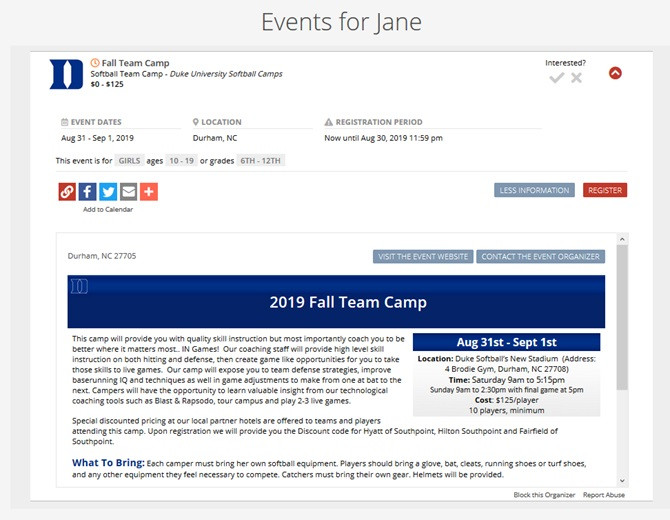
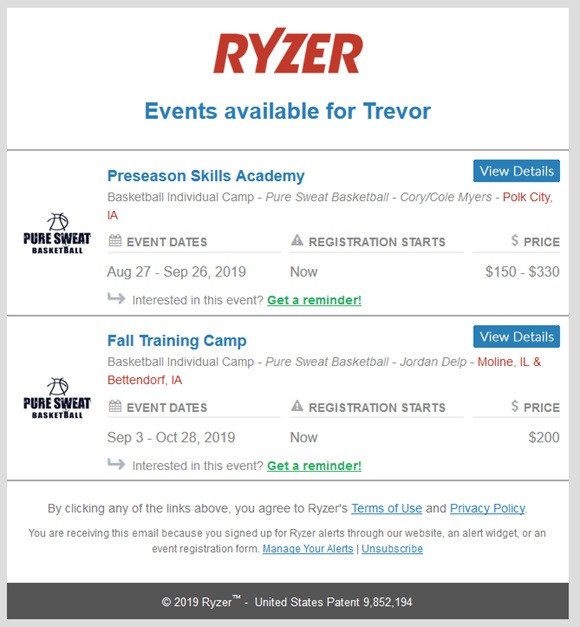
The alert contains the following information for a given event:
- Customer Ryzer Logo
- Event Name
- Customer Name
- Event Dates
- Registration Starts
- Price Range
-
Interested in this event? Get a reminder!
-
Get a Reminder! links to a webpage that displays the same list of events that was sent within the alert email. Whichever event clicked that sent them to this page, additional details will be displayed for the event in an accordion dropdown. These additional details include the following:
-
Gender
-
Age Range / Grade Range
-
Event Description
-
Visit The Event Website
-
Contact the Event Organizer
-
Block Organizer
-
-
Get a Reminder! links to a webpage that displays the same list of events that was sent within the alert email. Whichever event clicked that sent them to this page, additional details will be displayed for the event in an accordion dropdown. These additional details include the following:
-
View Details
-
View Details links to a webpage that displays the same list of events that was sent within the alert email. Whichever event clicked that sent them to this webpage, additional details will be displayed for the event in an accordion dropdown.
-
-
Manage Your Alerts
-
Manage Your Alerts links to the Notification Settings within the given profile.
-
-
Unsubscribe
-
Unsubscribe links to a webpage that allows you to enter an email address that you wish to unsubscribe. Once the correct email tied to the account has been entered the option to deactivate alerts for any and all of the profiles in your account is shown. If unsubscribe is clicked this will turn off the Ryzer alerts for those given profiles selected.
-
There is no preview for the Ryzer Alert before it is sent out, but below is an example of what all alerts look like:
If an event was marked as Not Interested within an alert, all this does is move the event to the bottom of their Recommended Event section on the profile. If they decide they are interested in the event all they have to do is scroll to the bottom of the Recommended Event section of the profile and uncheck the red “X” or check the green checkmark. This will move the event back up to the top of the recommended events section in the profile.
-
By being interested in the event they will then receive secondary reminders for the following:
-
Two weeks before registration closes.
-
When the event is almost sold out.
-
Secondary reminder alerts for interested events are sent out by default As It Happens.
-
-
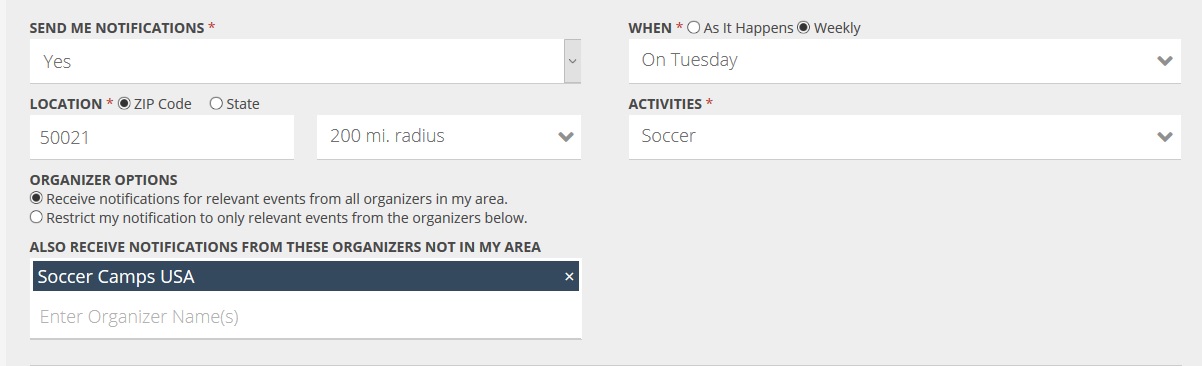
As for the Alert Notification settings these can be updated within each profile at any given time, once these are updated to the desired parameters, they will begin receiving alert emails again based on the new criteria set. Any events that meet the new criteria will also be shown within the Recommended Events section of the profile.
-
Notification Settings are as follows:
-
Location
-
Zip Code + Mile Radius (25, 50, 75, 150, 200)
-
Select a State
-
-
Organizer Options
-
Receive notifications for relevant events from all organizers in my area.
-
Restrict my notification to only relevant events from the organizers below.
-
Also Receive Notifications from These Organizers not in my area by entering an Organizer Name (i.e. Customer Name)
-
-
When
-
As It Happens
-
Weekly
-
On Sunday
-
On Monday
-
On Tuesday
-
On Wednesday
-
On Thursday
-
On Friday
-
On Saturday
-
-
-
Activities
-
-
-
- Includes athlete profiles for faster, streamlined registration (giving parent/athlete ability to save registrant info) reducing cart abandonment rates.
- Sends automated event reminders for events of interest - days prior to the registration cutoff and/or when an event is close to selling out.
- Optionally, we offer Registration Protector insurance through Allianz. This offering provides registrants reimbursement in the event they must cancel for a reason covered by the policy – in turn, reducing refunds.
- Optionally, provides your attendees a $40 discount to take the TAP (only $29.95 – regularly $69.95). Athletes become more self-aware. Parents gain tools to help guide their young athlete through the ups-and-downs of sports. Coaches learn how to more effectively instruct and develop each athlete. (edited)
There is no preview for the Ryzer Alert before it is sent out, but below is an example of what all alerts look like:
Options shown on the Ryzer Dashboard are as follows:
-
Event Views
- Total number of times that any of the customers event details have been viewed in Ryzer either by viewing an alert, viewing a recommended event on a profile or searching for the event within the event search.
-
Alerts Sent
-
Total number of alerts sent out for the customers events to any Ryzer users that requested to receive alerts for that specific customer or if the Ryzer Users notification settings meet the criteria set within the customers events.
- This criterion includes: Gender, Age Range, Grade Range and Distance (i.e. Zip Code).
-
Total number of alerts sent out for the customers events to any Ryzer users that requested to receive alerts for that specific customer or if the Ryzer Users notification settings meet the criteria set within the customers events.
-
Widget Alerts
- Total number of alerts set-up through the Ryzer Widget page on the customers website.
-
Alerts Clicked
-
Total number of times that a Ryzer User clicked on an event alert within the email they received for that customers events.
-
Alerts do NOT go out for sold out events if the event is sold out before the alert date. The event would have to sell out the day before the alerts…since the Ryzer alerts side is updated overnight for “sold out” status.