
Business Rules
-
Ryzer Alert Fields
-
If the event is being included in Ryzer Alerts, the following apply:
-
The Event Type should be set to Team Camp.
- If the Team Camp event type is selected the system will only ask for the Ryzer Fields (i.e. DOB, Grade as of Fall & Gender) within the Player Registration only even if these are not being asked as pre-defined fields.
- If the Team Camp event type is selected the system will only ask for the NCSA Fields (i.e. DOB, Grade as of Fall, Gender, HS Grad Year) within the Player Registration only even if these are not being asked as pre-defined fields.
-
The Age Range (Youngest Age & Oldest Age) & Grade Range (Youngest Grade & Oldest Grade) fields are both required.
-
The Event Type should be set to Team Camp.
-
If the event is being included in Ryzer Alerts, the following apply:
-
Using Custom Labels for Pre-Defined Fields
- The Custom Email label should not be used for the Email Field unless the label being used applies to both the Player Registration and Team Registration questions.
-
Any other custom labels being used on any of the pre-defined fields (i.e. Alternate E-Mail, School) can be used within the event, just keep in mind that if the custom label being used for that given pre-defined field does not apply to both the Player Registration and Team Registration questions then that pre-defined field will need to be hidden on either the Player or Team price levels.
-
Custom Fields
-
When adding custom fields each field has to have the For option selected (i.e. Players, Teams, Both Teams & Players) this field dictates which custom fields are shown as questions for the Team Registration & Player Registration.
- If a basic camp has been cloned and is turned into a Team Camp, prior to submitting the event it will require that all custom fields have the For option selected.
-
When adding custom fields each field has to have the For option selected (i.e. Players, Teams, Both Teams & Players) this field dictates which custom fields are shown as questions for the Team Registration & Player Registration.
-
Event Forms
-
When adding Event Forms to a Team Camp event, if the Allow Uploads During Registration option is selected, currently these event forms cannot be hidden on the price levels so they will be displayed in the Team AND Player Registrations.
-
FYI – We have a project in place the incorporates many updates to the Event Forms system and the option to hide event forms on given price levels is a part of this project.
-
FYI – We have a project in place the incorporates many updates to the Event Forms system and the option to hide event forms on given price levels is a part of this project.
-
When adding Event Forms to a Team Camp event, if the Allow Uploads During Registration option is selected, currently these event forms cannot be hidden on the price levels so they will be displayed in the Team AND Player Registrations.
-
Event Registration Display
-
The default button names on the Team Camp registration page are:
- Team Registration
-
Player Registration
- Custom labels can be added for these buttons by using the Team Registration Button Title or Player Registration Button Title within the Event Registration Display section.
-
The event description inputted in the event is shown the same for both the Team Registration and Player Registration buttons as well as the team event registration landing page.
-
The default button names on the Team Camp registration page are:
-
Event Agreements & Communications
-
Event Agreements
- When adding waivers for a team camp, if a given waiver/refund policy needs to be hidden on either a team price or player price this can be done when editing the team and/or player price and hiding the respective waiver under the Event Agreements & Communications section on the edit price page.
-
Welcome Email
-
If a welcome is added within the event welcome email section this will be sent to both the Teams and Players.
-
If separate welcome emails need to be sent to the Team and Player, these will need to be set-up in the price levels instead of the event.
-
If separate welcome emails need to be sent to the Team and Player, these will need to be set-up in the price levels instead of the event.
-
If a welcome is added within the event welcome email section this will be sent to both the Teams and Players.
-
Event Agreements
-
Team Price Type
-
Insurance
-
If adding additional Team price levels Insurance should always be set to Do Not Offer Insurance.
- Do Not Offer Insurance is automatically set on the Team Price when initially creating the event.
-
If adding additional Team price levels Insurance should always be set to Do Not Offer Insurance.
-
Hiding Info on Price Levels to not display on the Registration side.
-
On Team price levels all pre-defined fields excluding Email & Cell Phone can be hidden no matter what.
-
On Team price levels all pre-defined fields excluding Email & Cell Phone can be hidden no matter what.
-
Insurance
-
Player Price Type
-
Hiding Info on Price Levels to not display on the Registration side.
- On Player price levels when the event is included in Ryzer the following fields cannot be hidden along with Email & Cell Phone by default: DOB, Grade as of Fall and Gender.
-
On Player price levels when the event is included in NCSA the following fields cannot be hidden along with Email & Cell Phone by default: DOB, Grade as of Fall, Gender and HS Grad Year.
- To be able to hide DOB, Grade as of Fall or Gender pre-defined fields on Player Price levels or during online registration the event would need to NOT be included in Ryzer (i.e. Uncheck the Include this Event in Ryzer Alerts box within the event)
- To be able to hide HS Grade Year pre-defined fields on Player Price levels or during online registration the event would need to NOT be included in NCSA (i.e. Check the Remove NCSA opt-in for this Event box within the event.
-
Registration Limit per Team
- This can be set on a specific player price so that whatever team is registered that corresponds to that given player price only a specific number of players can register under that given Player Price associated with that team.
-
Wait List
-
A wait list is not available for player prices currently.
-
We have not seen a need for this as of yet, but if it is something that is needed in the future, we can add it.
-
We have not seen a need for this as of yet, but if it is something that is needed in the future, we can add it.
-
A wait list is not available for player prices currently.
-
Hiding Info on Price Levels to not display on the Registration side.
-
Team Camp Related Items for the App
-
Just to keep you in the loop since it pertains to Team Camps, the following info below is business rules in regards to the app once it becomes available.
- Walk-Ups are not an available option in the app.
- Evaluations can only be performed on players not Teams.
-
Check-Ins can be set up as follows:
- Check-In Players
- Check-In Teams
-
Check-In Both Teams & Players
-
Just to keep you in the loop since it pertains to Team Camps, the following info below is business rules in regards to the app once it becomes available.
- Player Registration Email to Coach: will now include price
FAQ
When a coach registers a team, the system will automatically input the team/school name into the player registration. This will allow the player to register for the correct team/school and make the reports easier to read
When players register online, Ryzer will send their coach an email so they know who’s signed up.
Yes, you can use the move button to move players from one team to another.
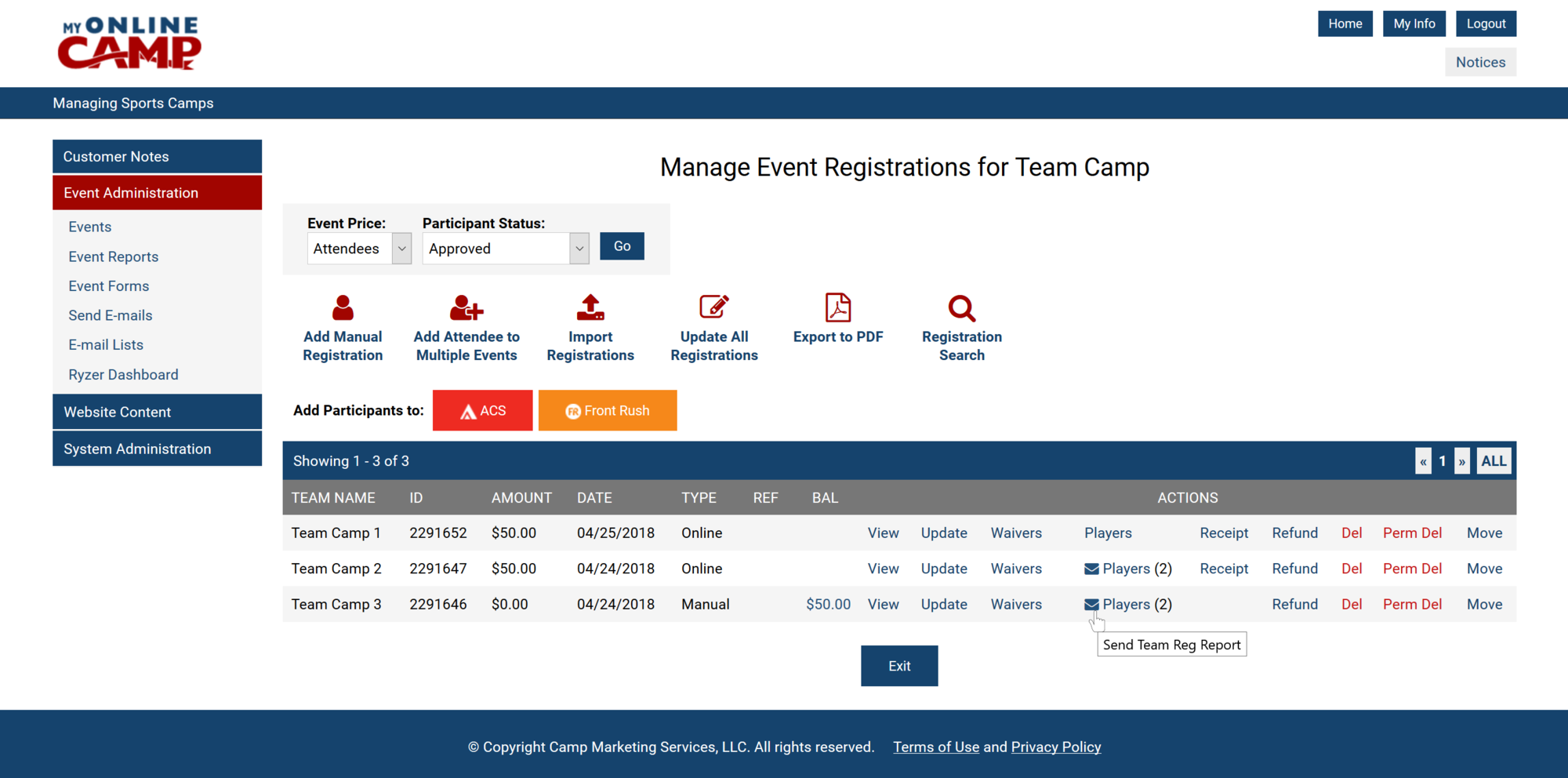
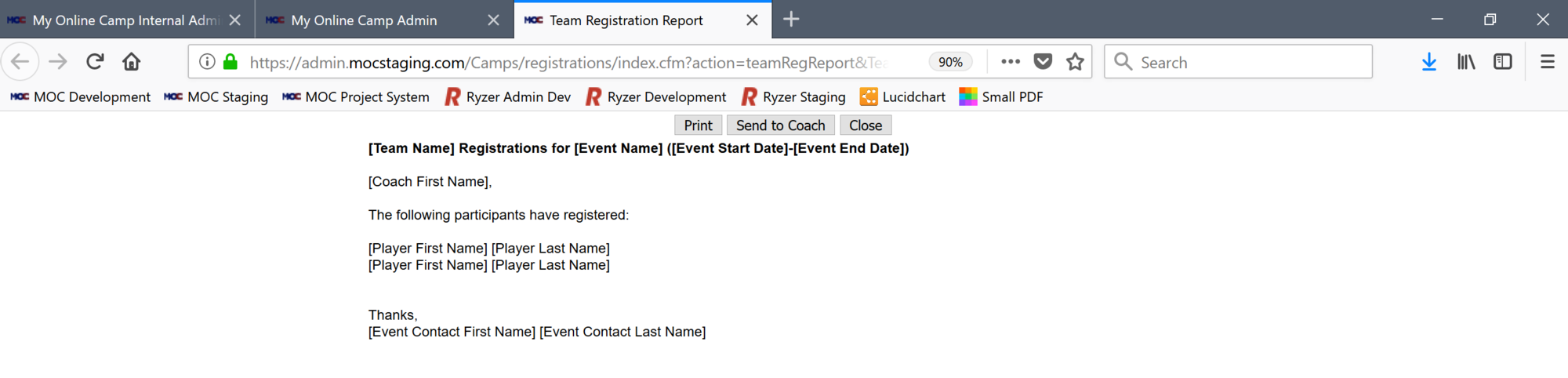
Within the registrations section of a team camp, if players have registered under a specific team. An envelope icon will appear, when this icon is clicked a new window will appear displaying the team registration report information for that given team. From this page, there is an option to send a copy of the team registration report to the coach.
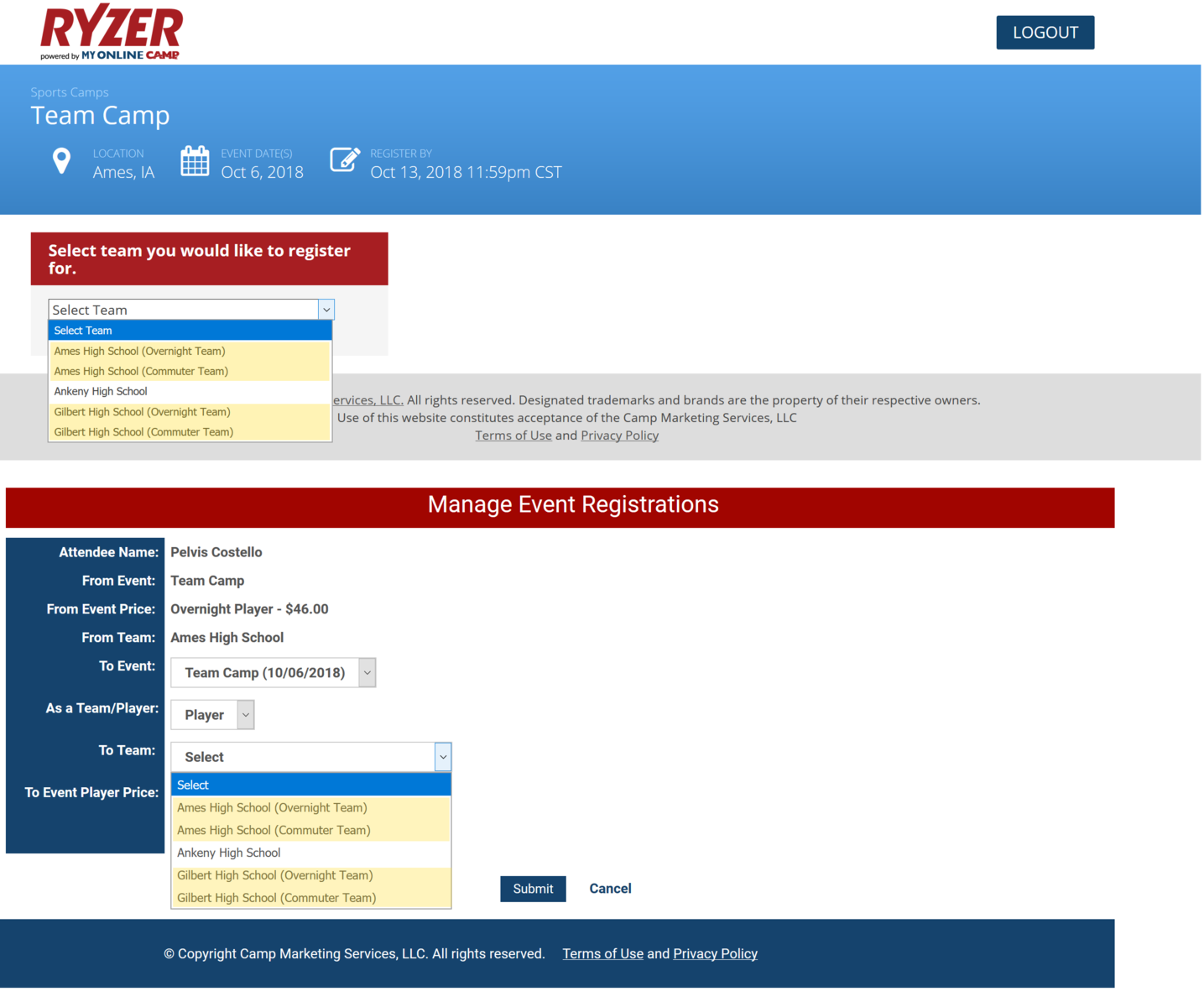
Registrants can be moved from a non-team camp event into a team camp event as either a Team or Player.
If the registrant is moved into a Team Camp as a team, the Team Name field will need to be updated in the registration before that team will display as a drop down within the player registration.
Teams or Players can be moved from a team camp event into a non-team camp event.
If moving a Team (With Players Registered), need to move the players first into a non-team camp event, then move the team into the non-team camp event.
Teams or Players can be moved from one team camp event into another team camp event as either a Team or Player.
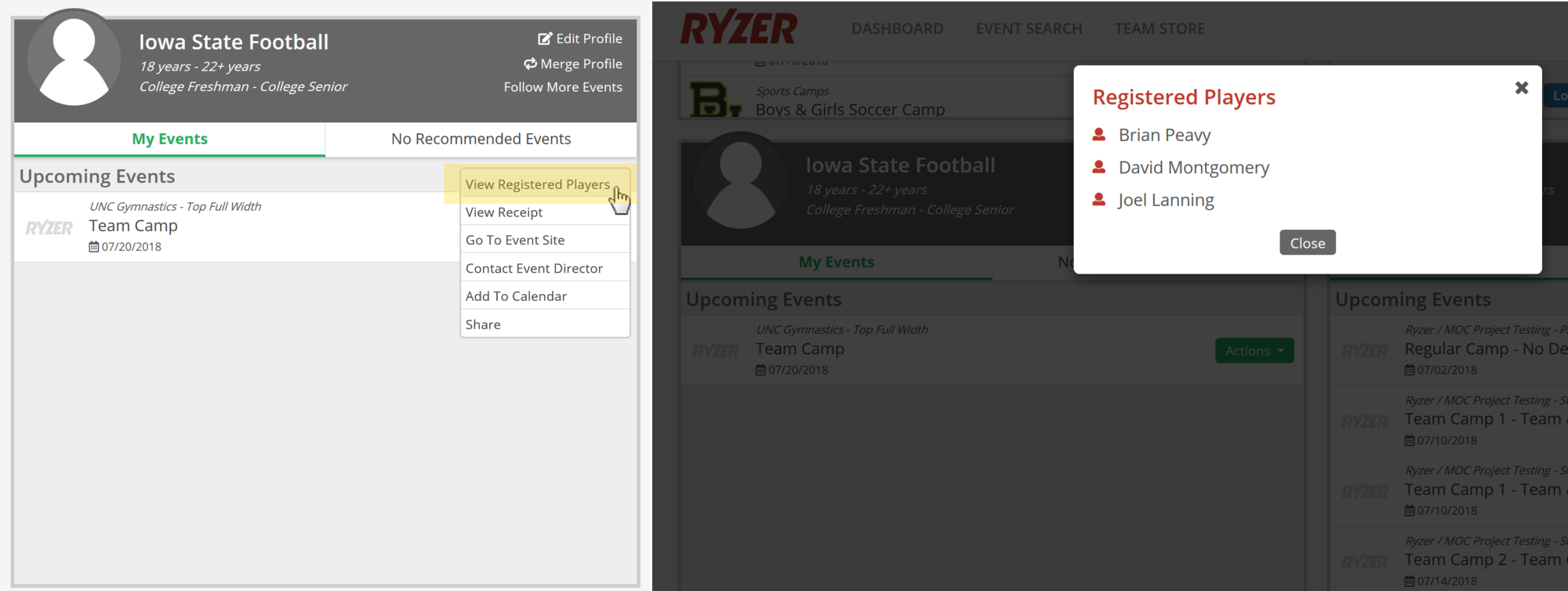
When teams register for a team camp, under the upcoming events actions button on the dashboard if players have registered under their team, a View Registered Players option will be displayed. When clicked, a list of players will be displayed in a pop-up window.
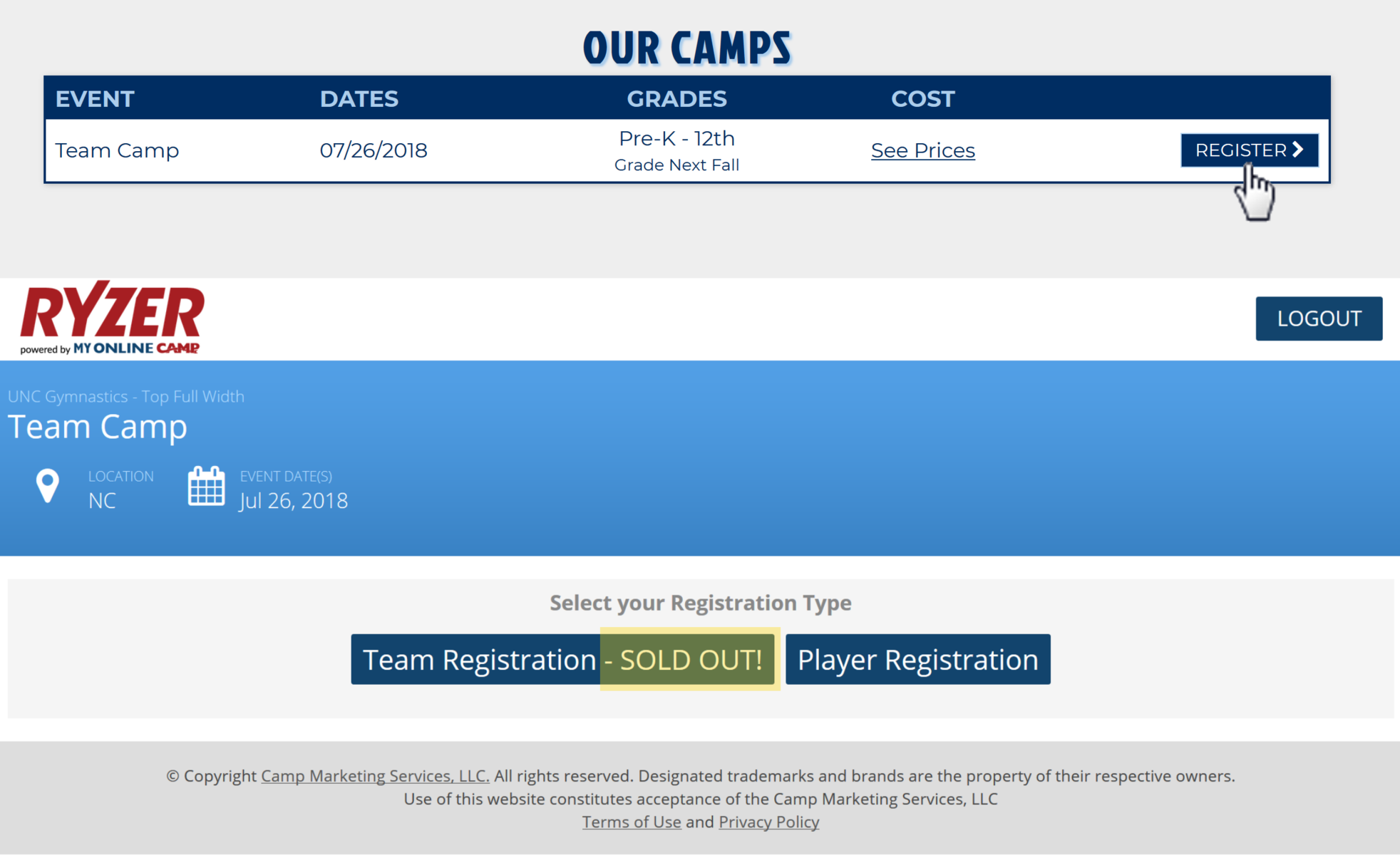
On the events list page for a Team Camp event, the button will always say REGISTER. Once register is clicked and the Team Camp event landing page is displayed. If all of the Team prices are sold out, the Team Registration button will say SOLD OUT.
When the exact same team name is registered within the same team camp event multiple times, the team price level name will be displayed after the team name in parenthesis on the events detail page when registering and on player moves in the admin.
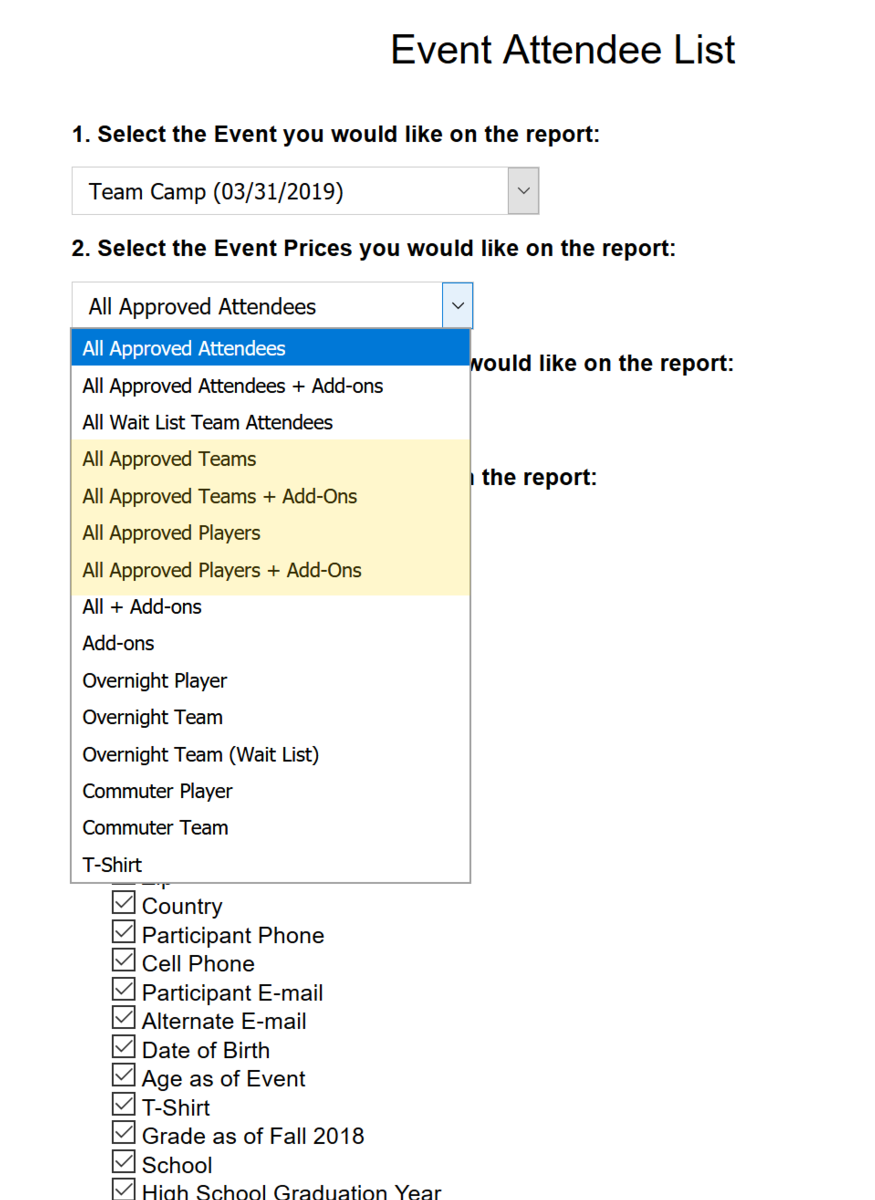
The following event price options have been added for Team Camps:
All Approved Teams
All Approved Teams event price option will pull all teams registered within all of the team prices within an event. Only custom fields set to Teams or Both Teams & Players within the event will pull on the attendee list.
All Approved Teams + Add-Ons
All Approved Teams + Add-Ons event price option will pull all teams registered within all of the team prices plus the add-ons purchased by the teams if applicable.
All Approved Players
All Approved Players event price option will pull all players registered within all of the players prices within an event. Only custom fields set to Players or Both Teams & Players within the event will pull on the attendee list.
All Approved Players + Add-Ons
All Approved Players + Add-Ons event price option will pull all players registered within all of the players prices plus the add-ons purchased by the players if applicable.
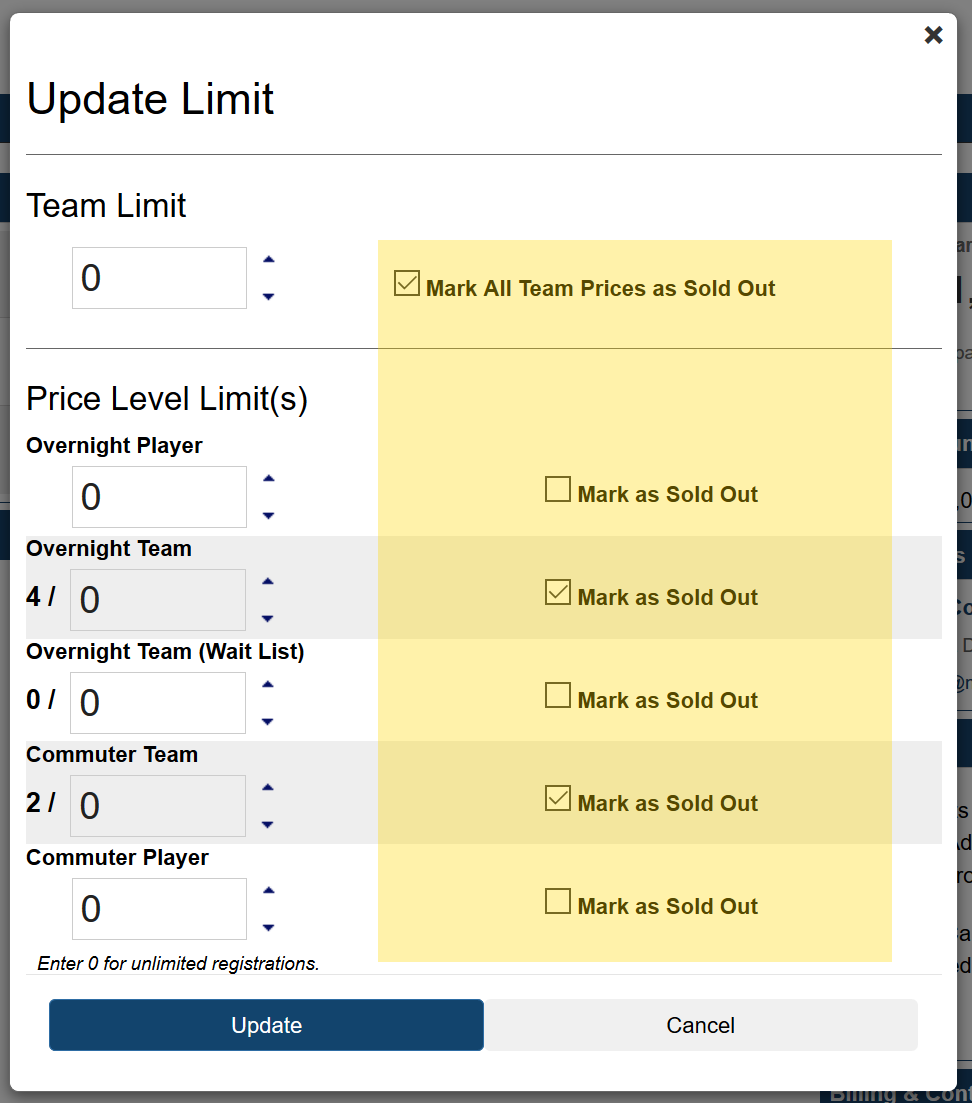
Within Team Camps on the dashboard when the # above Registrations is clicked within the modal an option to the right of the Team Camp Limit to Mark All Team Prices as Sold Out has been added.
When this box is checked and update is clicked it will check the mark as sold out box within all team prices, excluding wait lists and add-ons. If this box is unchecked and updated in the modal it will uncheck all of the mark as sold out checkboxes on the team prices excluding wait lists and add-ons. In addition, when this box is checked on the dashboard it will check the Mark All Team Prices as Sold Out box within the event as well.
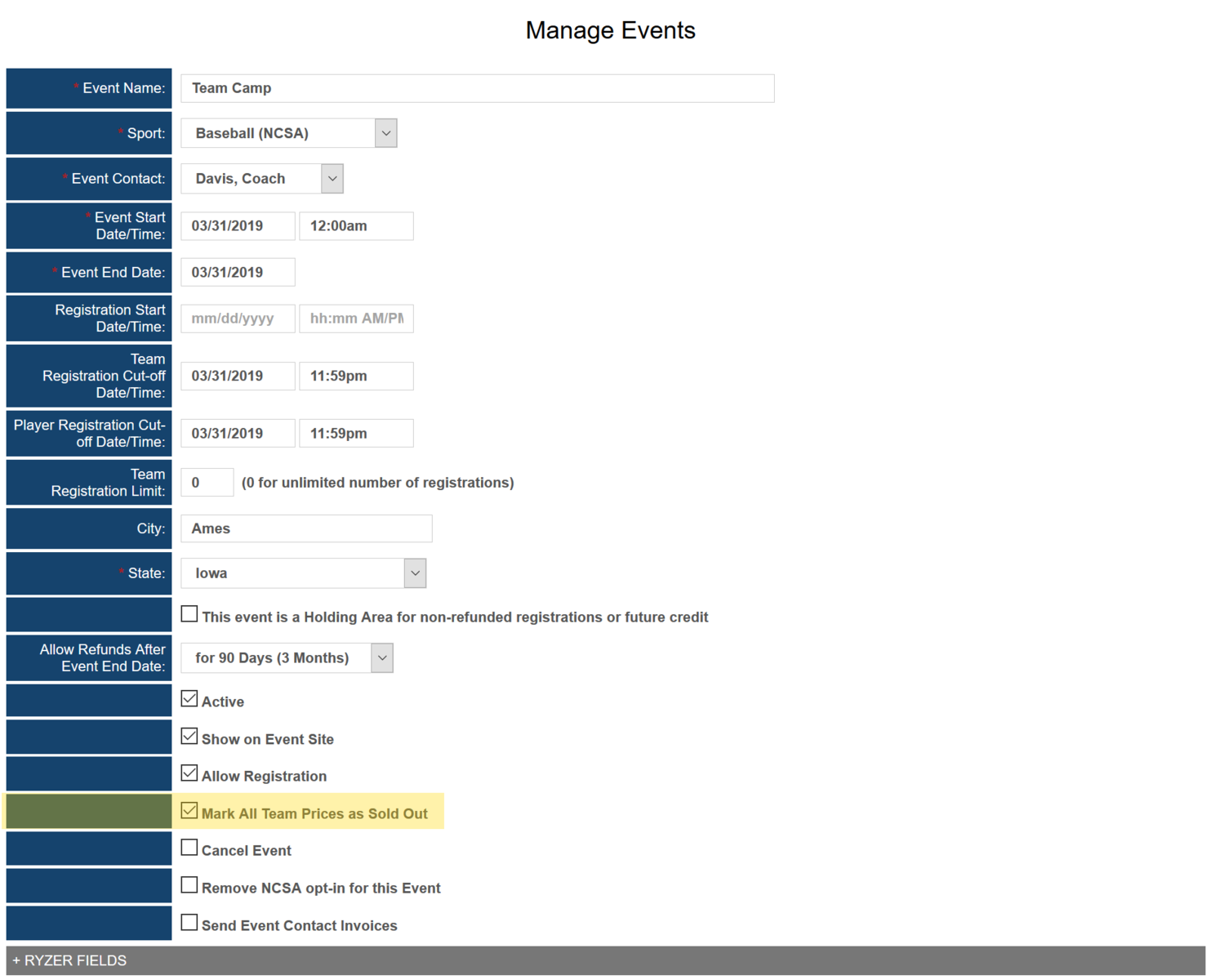
Within Team Camps when editing an event, a new checkbox right below Allow Registration has been added called Mark All Team Prices as Sold Out.
When this box is checked and the event is submitted it will check the mark as sold out box within all team prices, excluding wait list and add-ons. If this box is unchecked and the event is submitted it will uncheck all of the mark as sold out checkboxes on the team prices excluding wait lists and add-ons. In addition, when this box is checked when editing the event it will check the Mark All Team Prices as Sold Out box within the dashboard as well.
When a regular event is cloned and converted to a team camp and the event is submitted and the FOR field has not been updated within all of the custom fields the following error will be displayed:
Questions need to be designated For Players, For Teams or For Both Teams & Players for all custom fields.
The event will not submit until the FOR field has been filled out for all of the custom fields, once that step has been completed the event will then submit accordingly.
This can be found under registrations, as you can then select Players for specific team name in the registration list. This will provide you with a list of all currently registered players.
Yes, a team price level can be set-up for any $ amount when a coach/team pays, each player then still has the ability to register online at $0.00 and complete all registration questions, waivers, etc…and is placed under their specific team for registration.
Yes, this can be set up by adding separate welcome emails to each price level.
This option can be set up as a $0.00 registration for both coach/team & players, but is not ideal, as our only compensation comes in the form of an online convenience fee when online registration and payment is completed. This option can be utilized on a case by case basis.
Yes, this can be done by placing specific dates for the Team Registration Cut-off Date/Time vs. the Player Registration Cut-off Date/Time.
This would need to be done on a case by case basis, as a specific team price level would need to be created after knowing how many players are attending.